
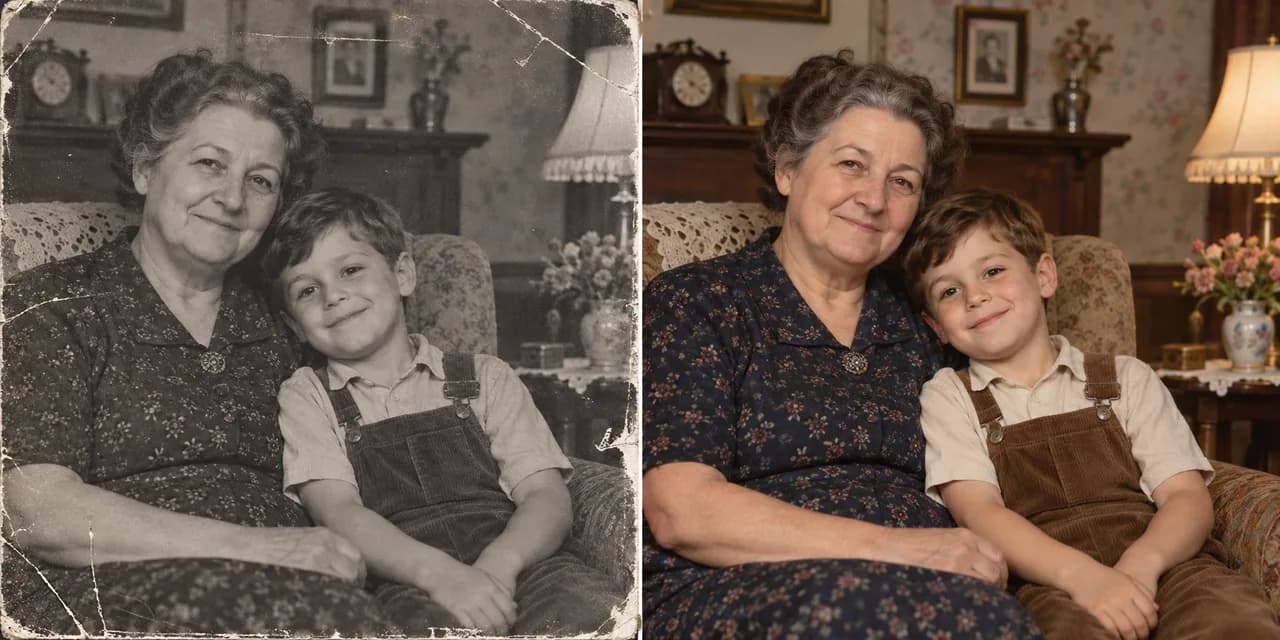
Image to image idea 01
Restore an old portrait
Give an older photo a fresh look by describing the repairs or color you want. Ask the model to preserve the people, expressions, and framing that make the portrait familiar.
Upload an image, describe what you want to change, and generate a new version. Or start with a text prompt.
These visual concepts show ways to transform a photo with a prompt. Use a reference image to guide the result, or start with text alone in the generator.
Image to image idea 01
Give an older photo a fresh look by describing the repairs or color you want. Ask the model to preserve the people, expressions, and framing that make the portrait familiar.
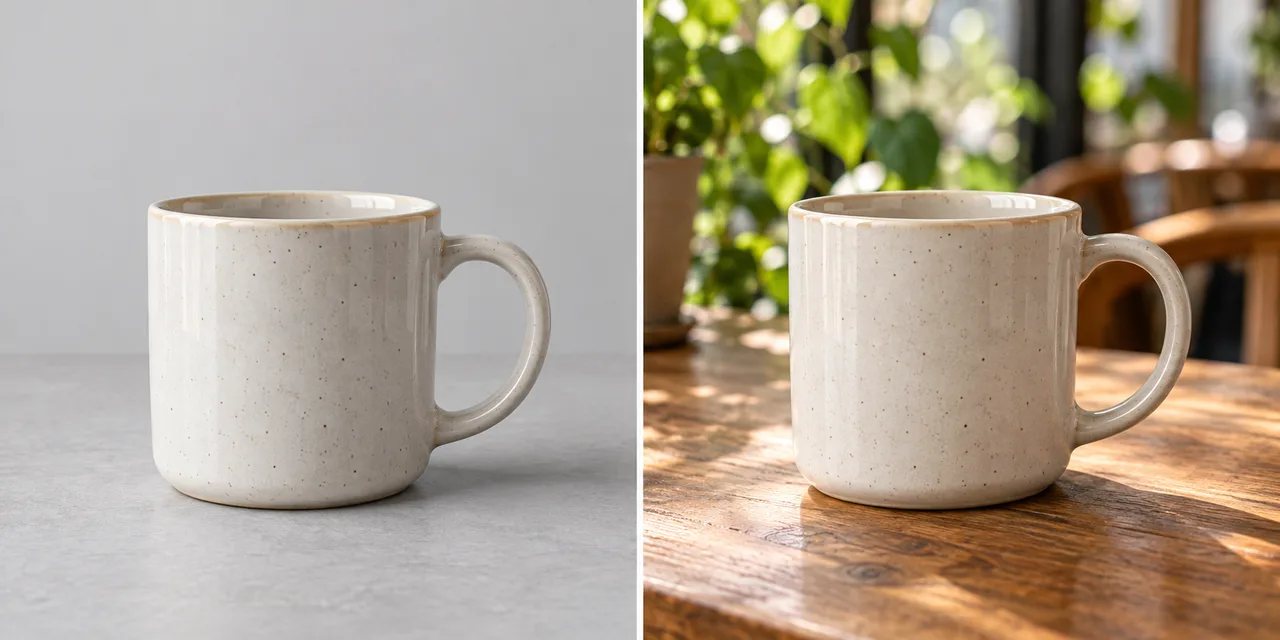
Image to image idea 02
Use a product photo as your starting point, then describe a new setting and lighting. Tell the model to keep the product’s shape, color, and viewing angle as it explores a different scene.
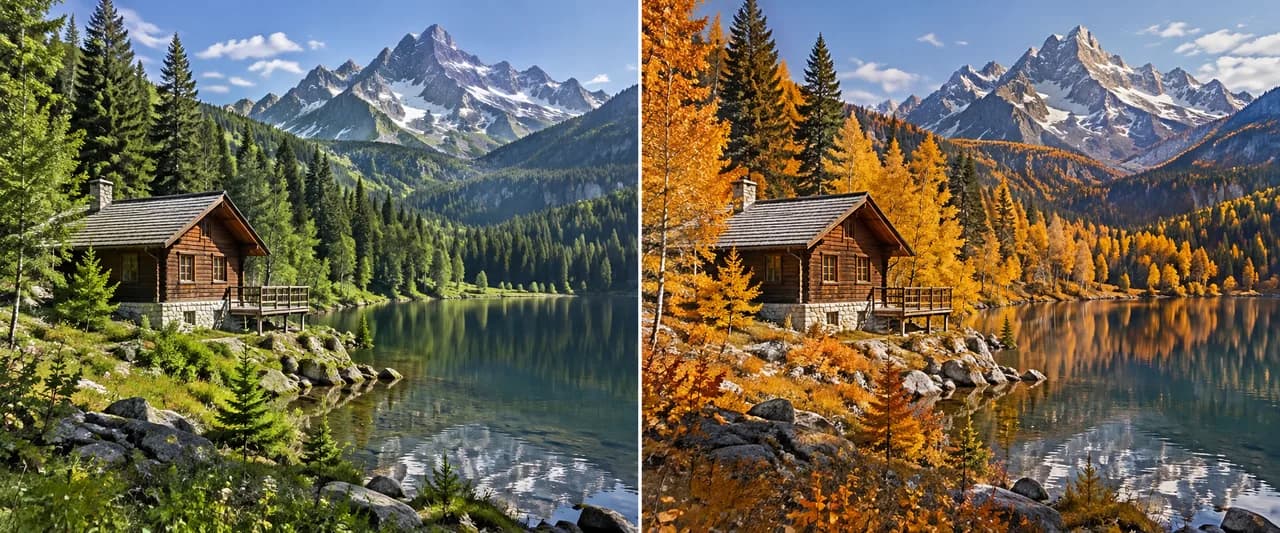
Image to image idea 03
Try a seasonal change without starting from scratch. Describe the foliage, light, and mood you want while using the original landscape as a guide for the composition.
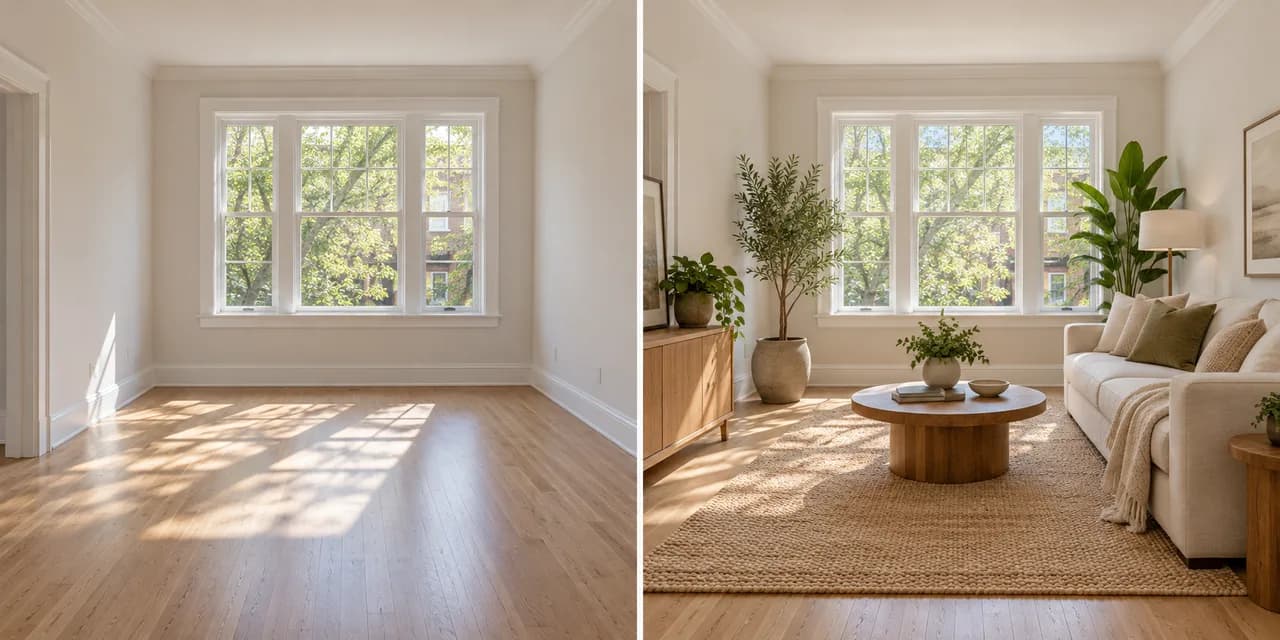
Image to image idea 04
Explore furnishings and decor for an existing space. A room photo can guide the layout, while your prompt describes the materials, furniture, and atmosphere you would like to see.
Use a reference image when you have one, or start with a prompt alone.
Step 1
Upload a JPEG, PNG, or WebP image to guide the result, or skip this step and start with a prompt.
Step 2
Write a prompt for the image you want. If you added a reference, explain what should change or stay the same.
Step 3
Select a model and adjust the settings it supports. Review the displayed credit cost before generating.
Step 4
Submit your prompt and any reference image, then preview the result. Refine your prompt to try another direction.
Step 5
Download a result you want to keep, or use it as a reference for another image to image edit.
Choose a model for your image edit. Click a card to select it in the generator above. The images are visual examples, not results from the named models.
Choose a plan or credit pack to keep transforming images with AI.
Perfect for beginners exploring AI video
Billed annually · $239.76 $119.88/year
2,000 credits per month
Ideal for high-frequency creation
Billed annually · $479.76 $239.88/year
5,000 credits per month
Designed for heavy production workflows
Billed annually · $935.76 $467.88/year
10,000 credits per month
An image to image AI generator uses an uploaded image as a visual reference to create a new image. Your prompt guides the changes you want.
The selected model combines your reference image with your written instructions and supported settings to generate a new result. The amount of visual similarity varies by model and prompt.
Upload an image, write a prompt, select a model and its available settings, then choose Generate. Sign in when prompted to submit the generation.
You can upload an image and prepare a prompt before signing in. Image to image generation uses the credit cost shown in the tool for your selected model and settings.
Text to image starts primarily from a written prompt. Image to image starts with an existing image and uses your prompt to guide its transformation.
Yes. Upload your photo as a reference and describe the result you want. Review the output carefully because details can differ from the original.
You can ask for an anime-style transformation in your prompt. The result depends on the model you select and the source image.
The reference image guides the result, but exact details are not guaranteed to remain. Clear prompts can help communicate what to preserve or change.
The upload control accepts JPEG, PNG, and WebP images. Each reference image must be 8 MB or smaller, and additional model-specific limits may apply.
Yes. After a result is generated, you can reuse it as a reference and write another prompt for a new generation.
Describe the subject, the changes you want, the visual style, lighting, and background. State important details you want to keep.
Yes. You can use a product photo as a reference to explore different backgrounds or visual styles. Check the result for accurate product details before using it.
Yes. Upload a portrait and describe the illustrated or 3D-inspired look you want. You can also suggest changes to the lighting or color while asking the model to keep important features of the original photo.
Yes. After generation, you can preview the result in the workspace and download an image you want to keep.
Start with a prompt or photo, describe the look you want, and create something new.
Start Creating NowKeep creating
Create and refine your next image or video with GatsbyAI.