
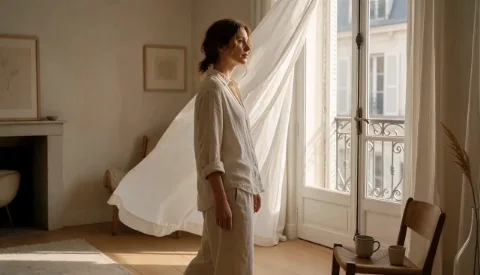
Upload a photo and tell Seedance what should move or how the camera should move.
Choose Seedance in the generatorUpload a photo, product image, or illustration and describe what you want to move. Choose a model and make a video. No image? You can start with text instead.
Choose a model family for your image. Click a card to select its first available model in the generator above. Videos are for inspiration.
Upload a photo and tell Seedance what should move or how the camera should move.
Choose Seedance in the generator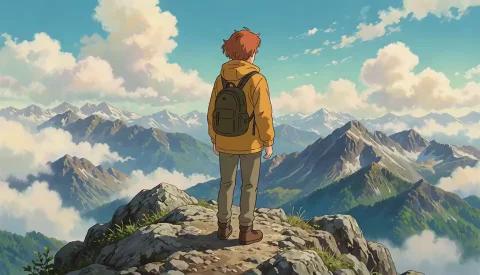
Start with an image and describe the action or camera move you want.
Choose Kling in the generator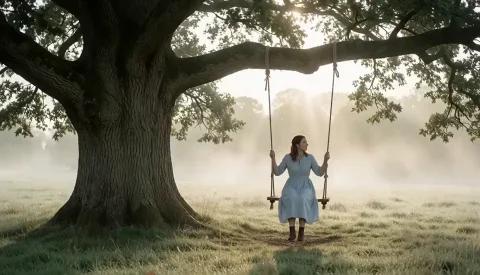
Add an image, choose a Veo model, and set the video options it supports.
Choose Google Veo in the generator
Turn a photo or illustration into a clip with a MiniMax model that accepts images.
Choose MiniMax in the generatorThese clips show ideas for portraits, products, characters, and scenery. Upload your own image and describe the movement you want.
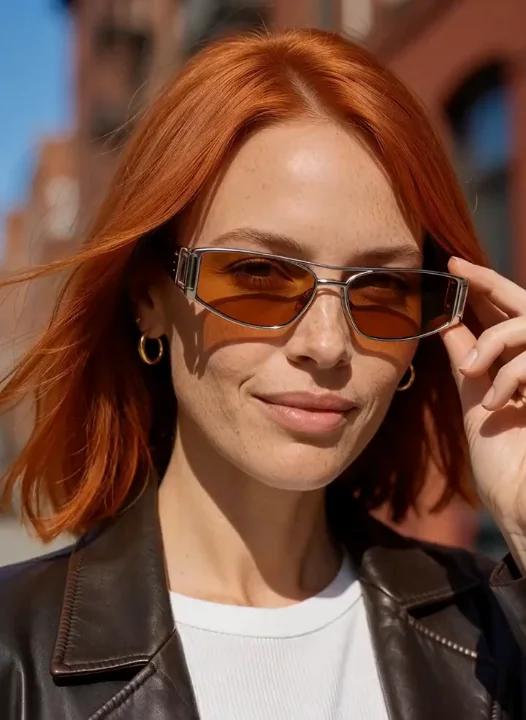
Portraits & social clips
Upload a portrait and ask for a glance, a small gesture, or a slow camera push. Keep the person centered if you are making a short social clip.
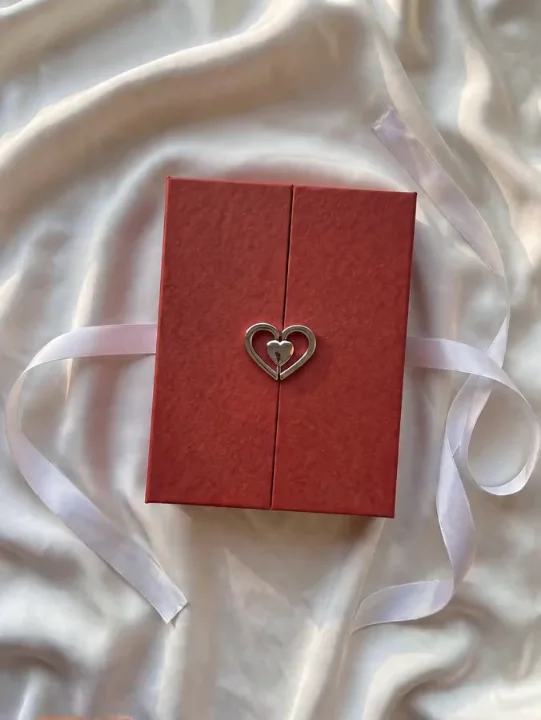
Product marketing
Upload a product photo and describe a close-up, reveal, or unboxing moment. Try the angle before using it in a longer ad.
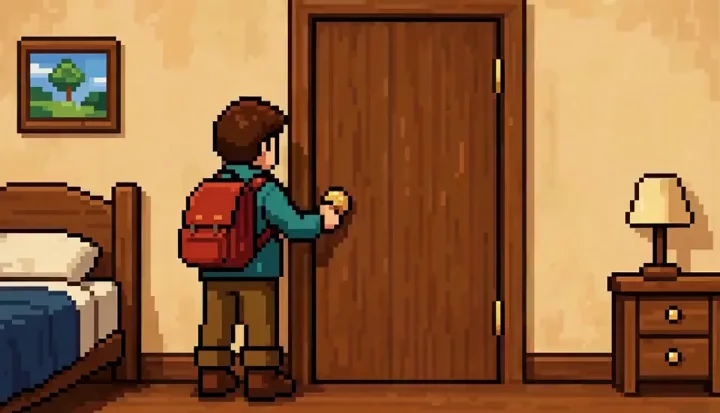
Characters & digital art
Upload a character drawing and ask for one action, like opening a door or waving. Use the clip to test a storyboard moment.
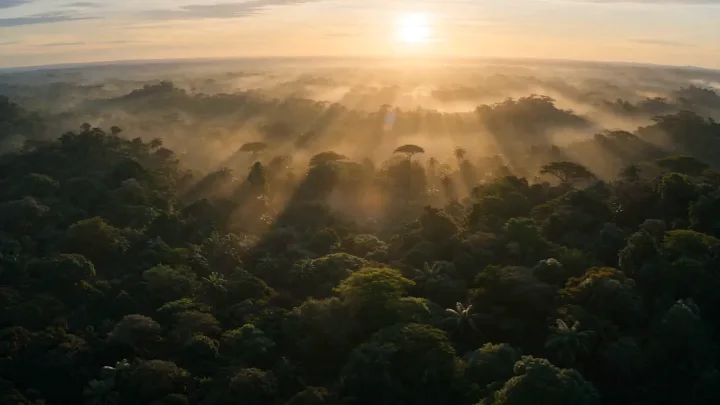
Scenery & storytelling
Upload a landscape and ask for moving light, wildlife, or someone walking through the frame. Use the clip to test the mood of a story or ad.
Upload an image, describe what moves, and pick a model. If you do not have an image, you can use a text prompt in the same generator.
Add a photo, drawing, or product shot. No image ready? Write a prompt and make a video from text instead.
Ask for a head turn, moving fabric, or a slow camera push. AI Optimize can help if you are unsure how to write the prompt.
Choose Seedance, Kling, Google Veo, or MiniMax. The generator shows the image and video settings each model supports.
Choose a duration, aspect ratio, and resolution. Sound and reference controls appear when the selected model supports them.
See the estimated cost next to Generate before you submit. Change a model or setting and the estimate updates.
Watch your video, then change the prompt or model if you want to try a different result.
Start with free daily usage. If you need more credits, compare the plans and credit packs below.
Perfect for beginners exploring AI video
Billed annually · $239.76 $119.88/year
2,000 credits per month
Ideal for high-frequency creation
Billed annually · $479.76 $239.88/year
5,000 credits per month
Designed for heavy production workflows
Billed annually · $935.76 $467.88/year
10,000 credits per month
It turns a still image into a video. Upload your image, describe what you want to move, and the model makes a short clip from it.
Upload a JPEG, PNG, or WebP image, describe the movement, and choose a model that accepts images. Check the settings and credit cost, then click Generate.
No. The same GatsbyAI generator also creates videos directly from text when you do not add a reference image.
If you're eligible, you can make up to 2 free videos a day with the default Seedance 2.0 Mini, 4s, 480P settings when capacity allows. Sign in to claim 10 daily credits. Other models and settings may use more credits.
You can upload images with models from Seedance, Kling, Google Veo, and MiniMax. Open the model picker to see which versions and settings are currently available.
JPEG, PNG, and WebP. The uploader checks file size and image dimensions before you generate.
Yes. Upload a photo or drawing and describe the movement you want. Start with one simple action, then adjust your prompt after seeing the result. Results vary by image and model.
Exact preservation is not guaranteed. Faces, text, logos, and small details may change, so review each output before using it.
Describe one clear action and, if it matters, a camera move. Put the most important detail first. You can use AI Optimize to expand a short idea before you generate.
For a portrait: “The person turns toward the camera and smiles as the camera moves closer.” For a product: “The camera circles the bottle while soft light moves across it.” Start with one action, then add details if needed.
It depends on the model. The generator shows the durations, aspect ratios, resolutions, reference modes, and sound options you can use.
The model and settings determine the cost. You will see the estimate next to Generate before you submit.
Generation time depends on the model and current queue. You can follow the task status while it runs.
If a task is marked as failed, the credits reserved for it are returned.
Upload a photo or drawing, tell us how it should move, and choose a model. Your next video starts in the generator above.
Start Creating VideosNo image yet? Create from text instead.